


Answered

Absences on Slack - 'visit Personio for a complete list'

  • October 12, 2023
  • 2 Antworten
  • 0 Aufrufe

Forum|alt.badge.img+2

Hi! 


Since October 3rd, I’ve noticed that the full list of Absences on a particular day isn’t pulling through on Slack - it says ‘and others; visit Personio for a complete list’.


This wasn’t the case before (it used to show the full list) but as it doesn’t allow people to efficiently see who is / isn’t working on a particular day (one of the major reasons for choosing this integration), it’s causing quite a few problems. Is there a setting that I can change to stop this happening and see the full list on Slack again?  


Thanks! 

Beste Antwort von International Support Team

Hey @avmar99 

We are aware that a change was made recently in regards to the Slack integration and the challenges that are faced with this new view. The Product Team will look to fix this in future, but for now it will remain. For this reason, I would kindly ask that you refer to the Absence Calendar within Personio or the Out Today widget to see the full list of absences for your organization. 

If you have any other questions, please feel free to ask.

Best regards, 

Conor

2 Antworten

Forum|alt.badge.img+18

Hey @avmar99 

We are aware that a change was made recently in regards to the Slack integration and the challenges that are faced with this new view. The Product Team will look to fix this in future, but for now it will remain. For this reason, I would kindly ask that you refer to the Absence Calendar within Personio or the Out Today widget to see the full list of absences for your organization. 

If you have any other questions, please feel free to ask.

Best regards, 

Conor


Forum|alt.badge.img+5
  • Personio Team
  • November 19, 2024

Hi ​@julien,

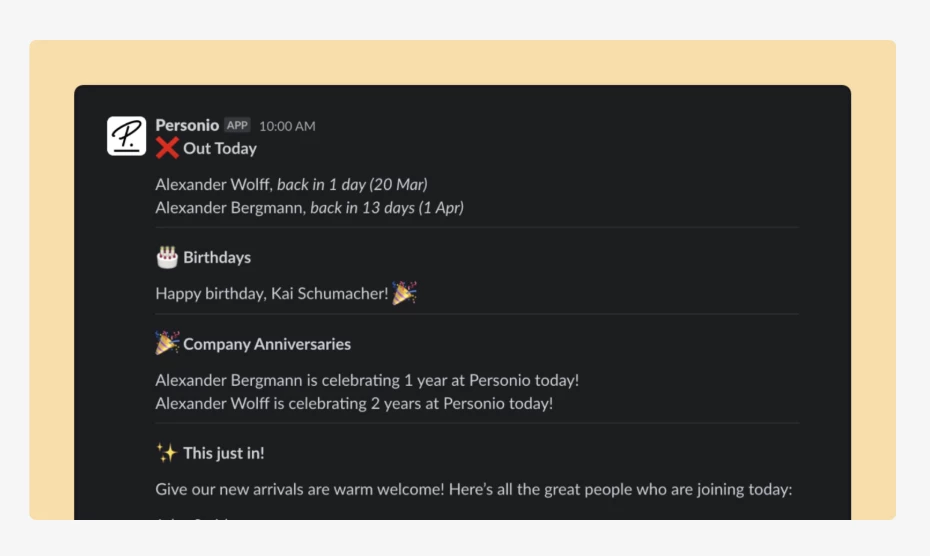
This is how Slack should push notifications:

If your notifications don’t reflect this example, and they’re all displayed in the same line, I would suggest you create a support request via Help & FeedbackHelp & Feedback > Browse for help > Contact us.

Please bear in mind that only Account Owners can contact our Support team. In case you are not registered as such, please contact your colleagues in the role, or add this information to your account. You can find out how here.

I hope this helps,

Valentina 🍁