I am looking for a smart solution to manage the statutory “Bildungsurlaub” (educational leave) which every employee in Berlin has. The rule is that everybody can take 10 days of it within two years. The counting of those days does only start with the first day of training - so not in the beginning of the year. We haven’t found a good way to manage this in Personio yet. I know that there are other German counties with the same law and wonder if someone can help.
Best regards,
Nora
Beste Antwort von Lauraglendon
Hi @Nora Winter,
Thank you for reaching out, that's a great question. Here's a workaround that I would like to suggest;
Step 1: Creating Policy in Settings
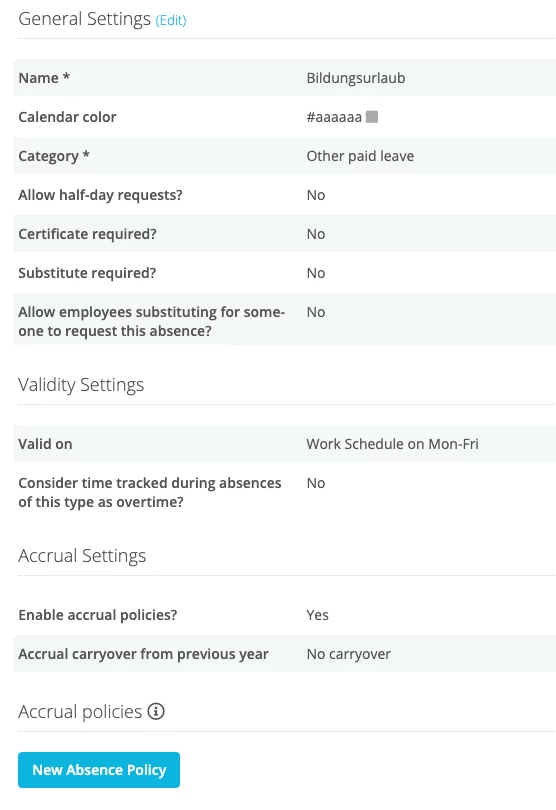
Go to Settings > Absence > Enter New type 'Bildungsurlaub' and click '+' symbol
Select category 'Other leave' and 'Consider time tracked during absences of this type as overtime?' to No.
Select Enable accrual policies? to Yes and Carryover to ‘No’ The other settings are as you wish, however here are my suggestions;
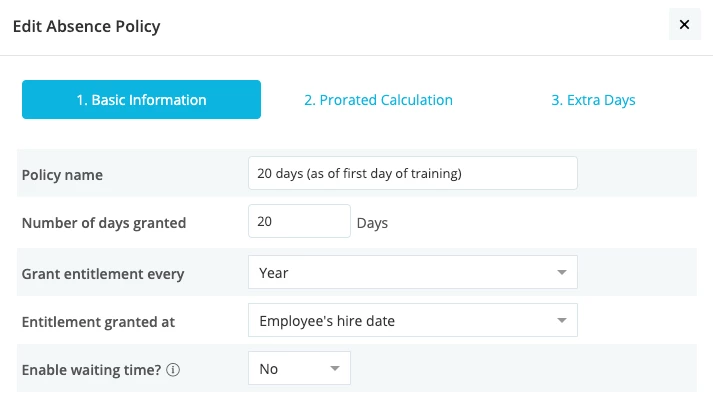
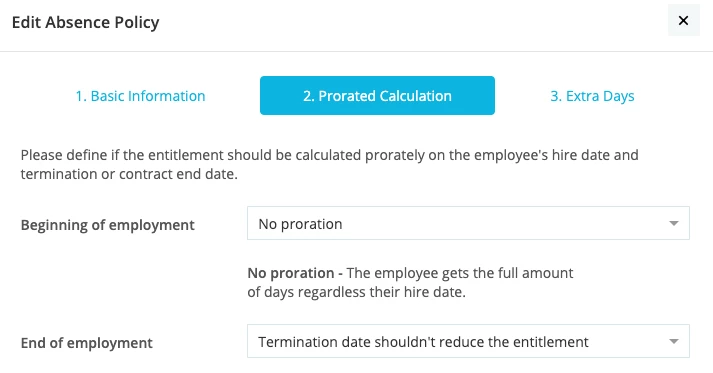
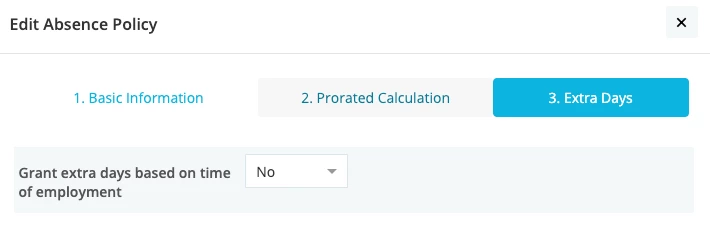
Select New Absence Policy (already created in screenshot) as follows, ensuring to select 'No Proration' for Beginning of Employment;
For further information on this part, please view this guide.
Step 2: Management of new Absence Policy:
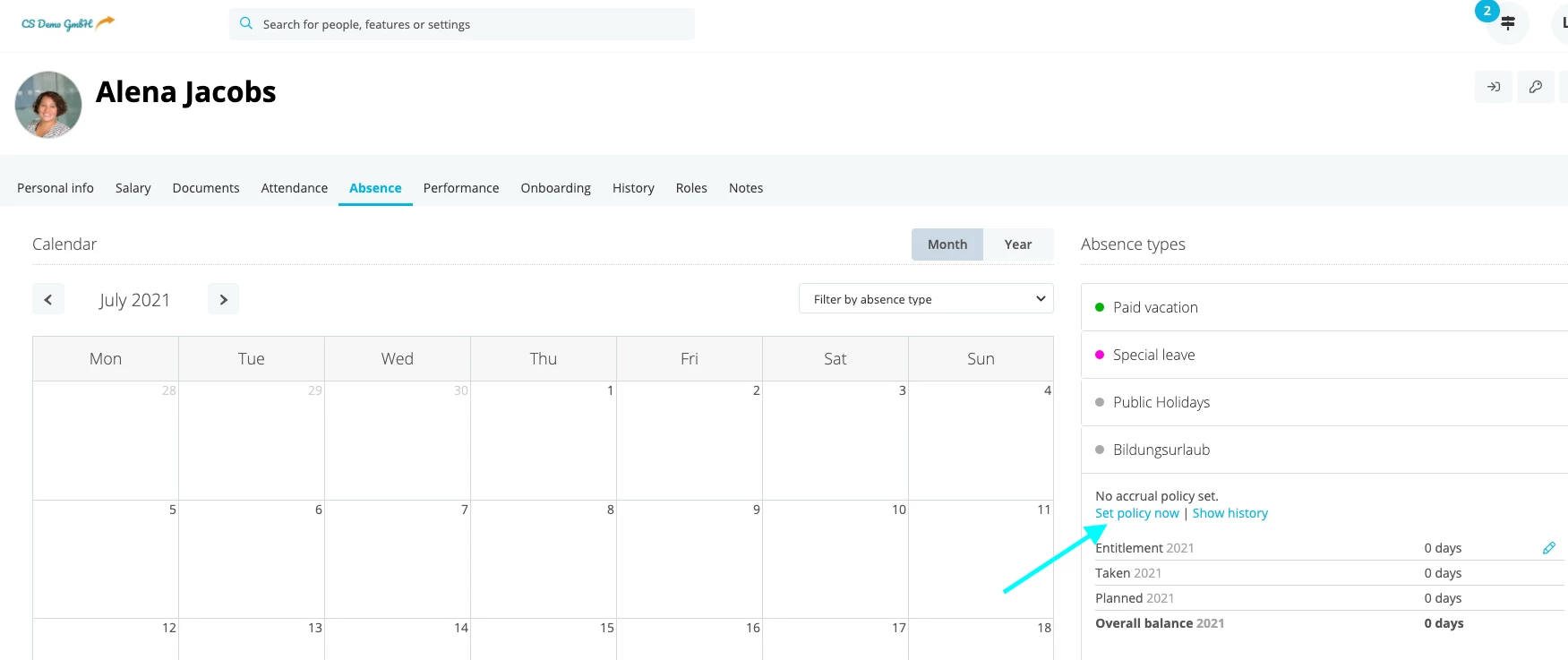
On, or just before the start date of an employee's Bildungsurlaub, please select the Employee's name > Absence tab > Bildungsurlaub > 'Set policy now', so that you can select the 20 days entitlement. Alternatively, go to Employee list, select one or more employees > Actions > Change
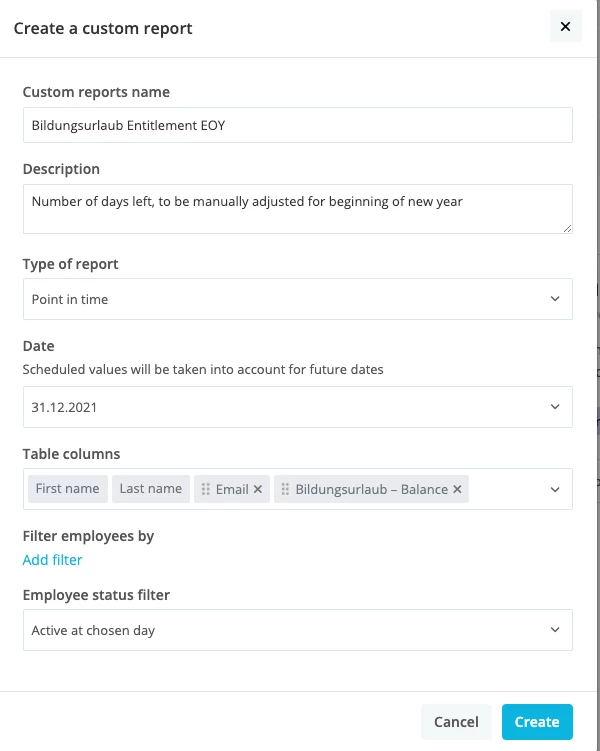
At the end of the year, to see if any employee's Bildungsurlaub entitlements be greater than 0, please go to Settings > Reports > Custom Reports > Create Custom Report (as in screenshot) and Create
Once you have this, please then use the 'EN Accrual Balance Upload.xlsx' download file, which can be found on this article, to add the employee's balance at the beginning of the new year, so that the correct balance is added for year 2 of the entitlement.
Once you have created the custom report, it will continue to update as any changes are made to the employee’s entitlements, so you can check in on it at any stage.
I hope this workaround works for you, but please let me know if you have any questions.
Thank you for reaching out, that's a great question. Here's a workaround that I would like to suggest;
Step 1: Creating Policy in Settings
Go to Settings > Absence > Enter New type 'Bildungsurlaub' and click '+' symbol
Select category 'Other leave' and 'Consider time tracked during absences of this type as overtime?' to No.
Select Enable accrual policies? to Yes and Carryover to ‘No’ The other settings are as you wish, however here are my suggestions;
Select New Absence Policy (already created in screenshot) as follows, ensuring to select 'No Proration' for Beginning of Employment;
For further information on this part, please view this guide.
Step 2: Management of new Absence Policy:
On, or just before the start date of an employee's Bildungsurlaub, please select the Employee's name > Absence tab > Bildungsurlaub > 'Set policy now', so that you can select the 20 days entitlement. Alternatively, go to Employee list, select one or more employees > Actions > Change
At the end of the year, to see if any employee's Bildungsurlaub entitlements be greater than 0, please go to Settings > Reports > Custom Reports > Create Custom Report (as in screenshot) and Create
Once you have this, please then use the 'EN Accrual Balance Upload.xlsx' download file, which can be found on this article, to add the employee's balance at the beginning of the new year, so that the correct balance is added for year 2 of the entitlement.
Once you have created the custom report, it will continue to update as any changes are made to the employee’s entitlements, so you can check in on it at any stage.
I hope this workaround works for you, but please let me know if you have any questions.
Note also, if you’d like this new absence type to be visible on your employee accounts via their access, to add it in Settings > Employee Roles > All Employees > Access Rights > Absence and scroll down to the new absence type, clicking your preferred access right here. (Full guide on Access Rights here!) While here, double check the calendar view rights under All Employees > Calendars tab for the new absence.
Additionally, you can add it to the calendar view (Settings > Calendar > tick new absence type) and in the payroll section (Settings > Salaries & Payroll > Absence types in absence tab)
If you’ve any questions, just let me know!
Best regards,
Laura
Übersetzen
⚠️Achtung! Dieses Thema könnte veraltet sein
Dieses Thema wurde vor mehr als erstellt. Unser Produkt entwickelt sich schnell weiter — stelle gerne eine neue Frage, um die aktuellsten Infos zu bekommen.
Werde Teil der Personio Voyager Community!
Bitte benutze für die Registrierung die gleiche E-Mail-Adresse, die Du auch zum Login in Deinem Personio Account benutzt. Dies erleichtert es uns, Dir effektiv und effizient zu helfen, wenn wir z.B. etwas in Deinem Account überprüfen müssen. Bereits registriert? > Anmelden
Achtung: Dein öffentlicher Benutzername darf keine persönlichen Informationen wie E-Mail oder andere private Daten enthalten!
Herzlich willkommen in der Personio Voyager Community.
Die Service und Networking Community für alle Personio Kund*innen und HRler*innen. Solltest Du Dich noch nicht registriert haben, klicke bitte unten auf "Benutzerkonto erstellen". Benutzerkonto erstellen
Enter your E-mail address. We'll send you an e-mail with instructions to reset your password.