We have employees who work different hours on different days so their holiday should be deducted in hours.
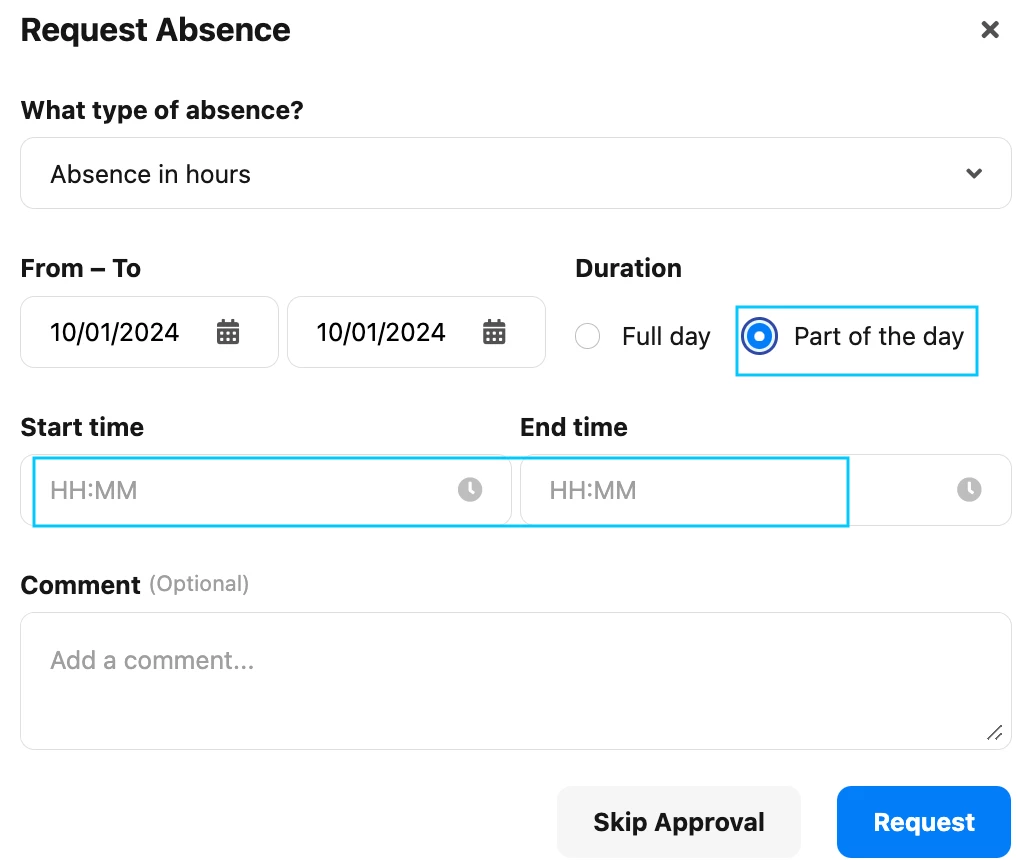
I have created an absence type for taking annual leave in hours but when you go to request this leave it does it in “days” of 8 hours which seems to defeat the object?
What am I missing? How can they request a number of hours holiday for the relevant day?
Beste Antwort von International Support Team
Hi @acb,
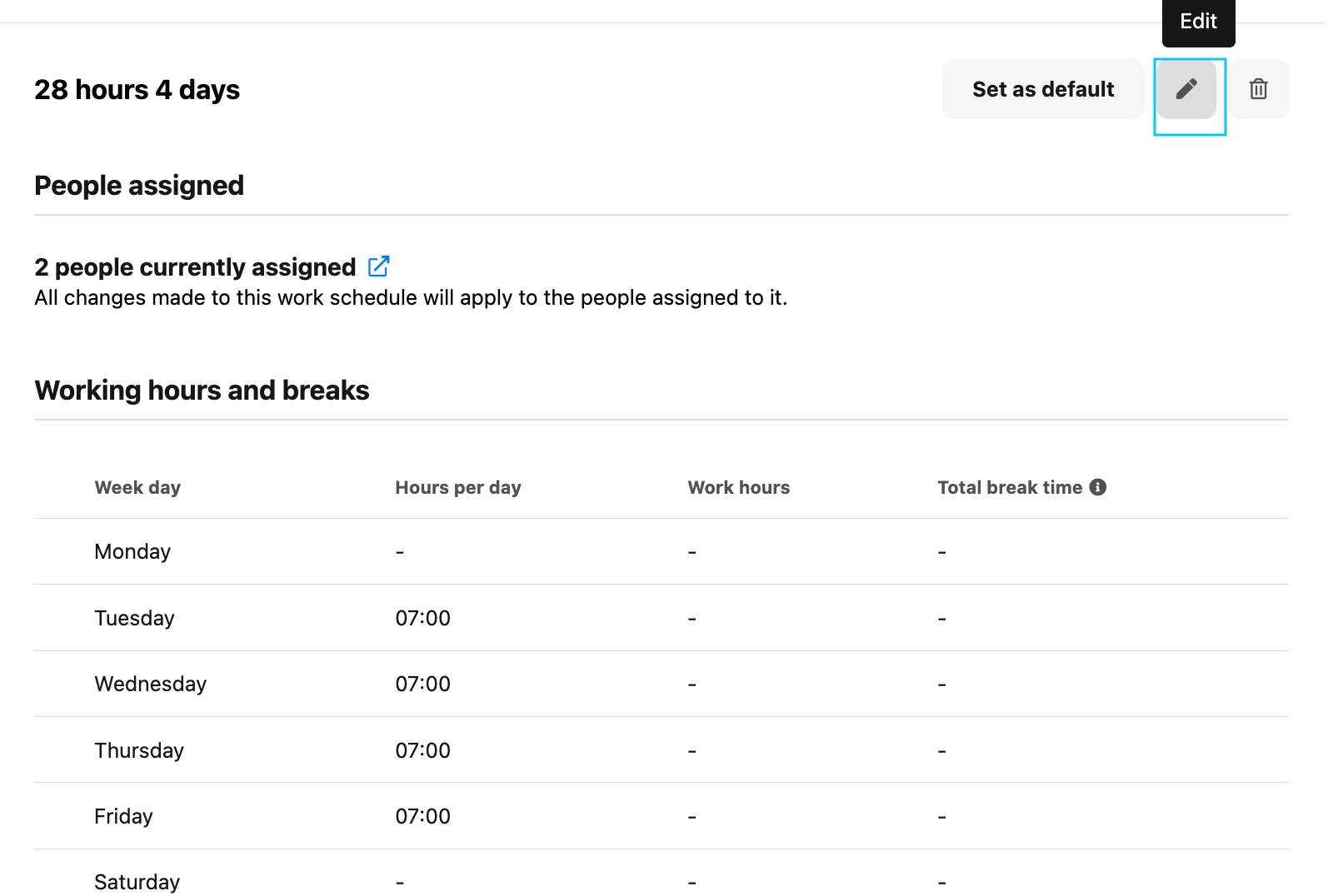
The amount of hours of a working day depends on what you have setup in the Work schedule, If you would like a particular day to be more than 8 hours you can make the edit in the Work schedule or make a new Work Schedule.
This you can do by going to Settings > Attendance > Go to the relevant Work schedule > Edit. Please be aware that if you make a change in a Work Schedule that is already assigned to an employee this will go retrospective depending on the date that the Work Schedule was assigned to the employee.
Another option is to make a new Work Schedule and when assigning this new Work Schedule to the employees choose a certain date in the profile of the employee for when this Work Schedule should be valid.
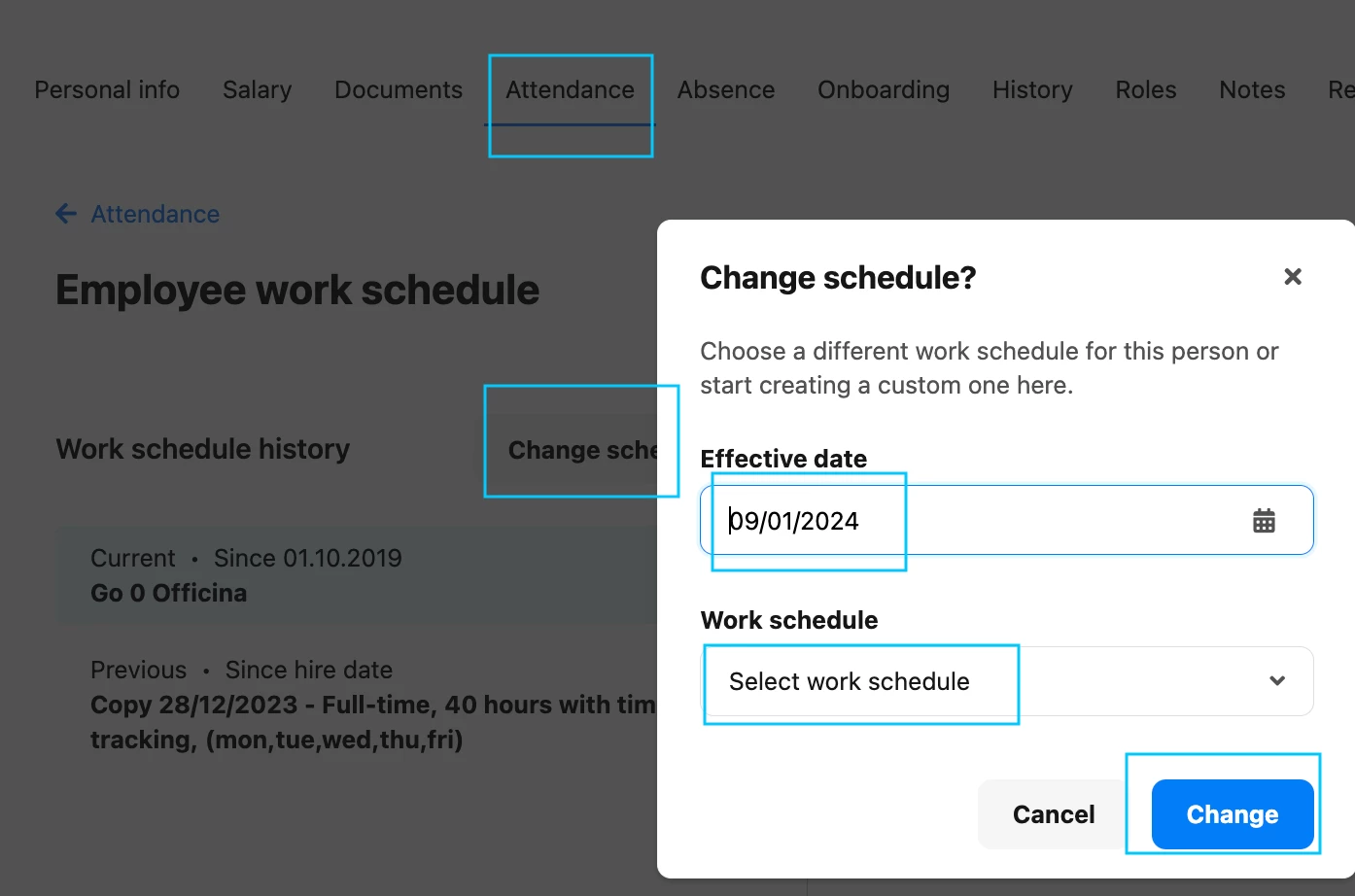
When assigning a Work Schedule you can choose a date for when this Work Schedule should be valid:
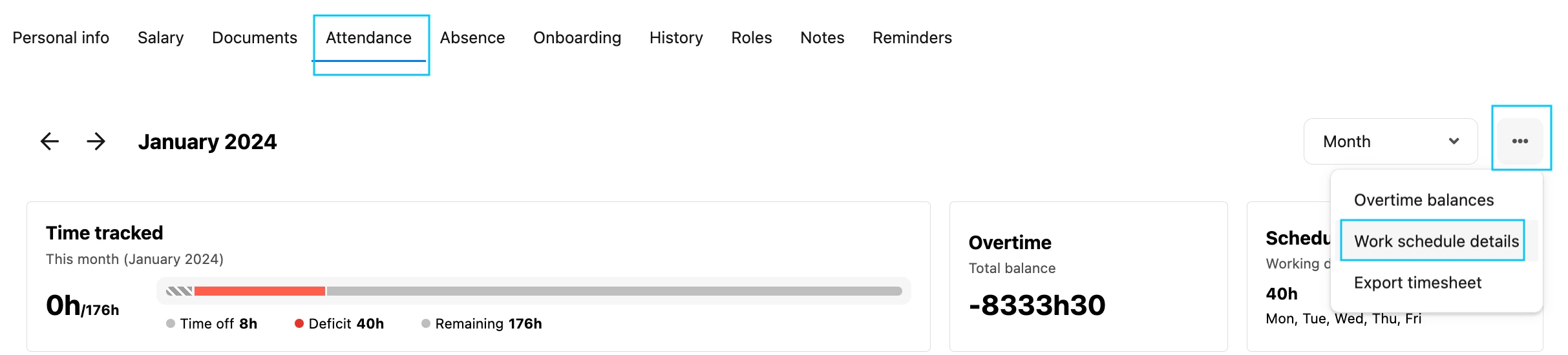
Employee profile > Attendance > click on the 3 dots on the right corner > Work schedule details > Change Work Schedule > select Effective date and Work Schedule:
The amount of hours of a working day depends on what you have setup in the Work schedule, If you would like a particular day to be more than 8 hours you can make the edit in the Work schedule or make a new Work Schedule.
This you can do by going to Settings > Attendance > Go to the relevant Work schedule > Edit. Please be aware that if you make a change in a Work Schedule that is already assigned to an employee this will go retrospective depending on the date that the Work Schedule was assigned to the employee.
Another option is to make a new Work Schedule and when assigning this new Work Schedule to the employees choose a certain date in the profile of the employee for when this Work Schedule should be valid.
When assigning a Work Schedule you can choose a date for when this Work Schedule should be valid:
Employee profile > Attendance > click on the 3 dots on the right corner > Work schedule details > Change Work Schedule > select Effective date and Work Schedule:
We only have a few people who need to be on hours working and holiday accrual. How do I remove or hide the Annual Leave (Days) absence type from their profile, as this still seems to be active even though I have removed their accrual policy?
And now that I have created an Annual Leave (Hours) absence type it appears on everyone else’s profile and is raising questions. It seems they can request leave in hours without a accrual policy being assigned? How do I remove it or hide it in their profile?
Also, the Annual Leave (Hours) absence type appears at the bottom of the list. Is it possible to rearrange the list order?
When the Accrual policy has been unassigned from the profile of an employee, this employee shouldn’t be able to see this Absence type.
In this case, I would suggest you to create a support request via Find Answersso my colleagues from Support can look within your settings. Be aware that only Account owners can contact our support team. In case you are not registered as such, please contact your colleagues in the role, or add this information in your account. You can find out how here.
Answer to question 2:
If you have created an Absence type and this Absence type has in the Settings an Accrual policy. If you don’t assign this Accrual policy the profiles in the employees then they would’t be able to see this Absence type. I suppose you have not created an Accrual policy for this Absence type in the Settings, therefore it is showing in all the profiles. The moment you create an Accrual policy in for this Absence type only employees that have this Accrual policy assigned in their profiles will be able to see this Absence.
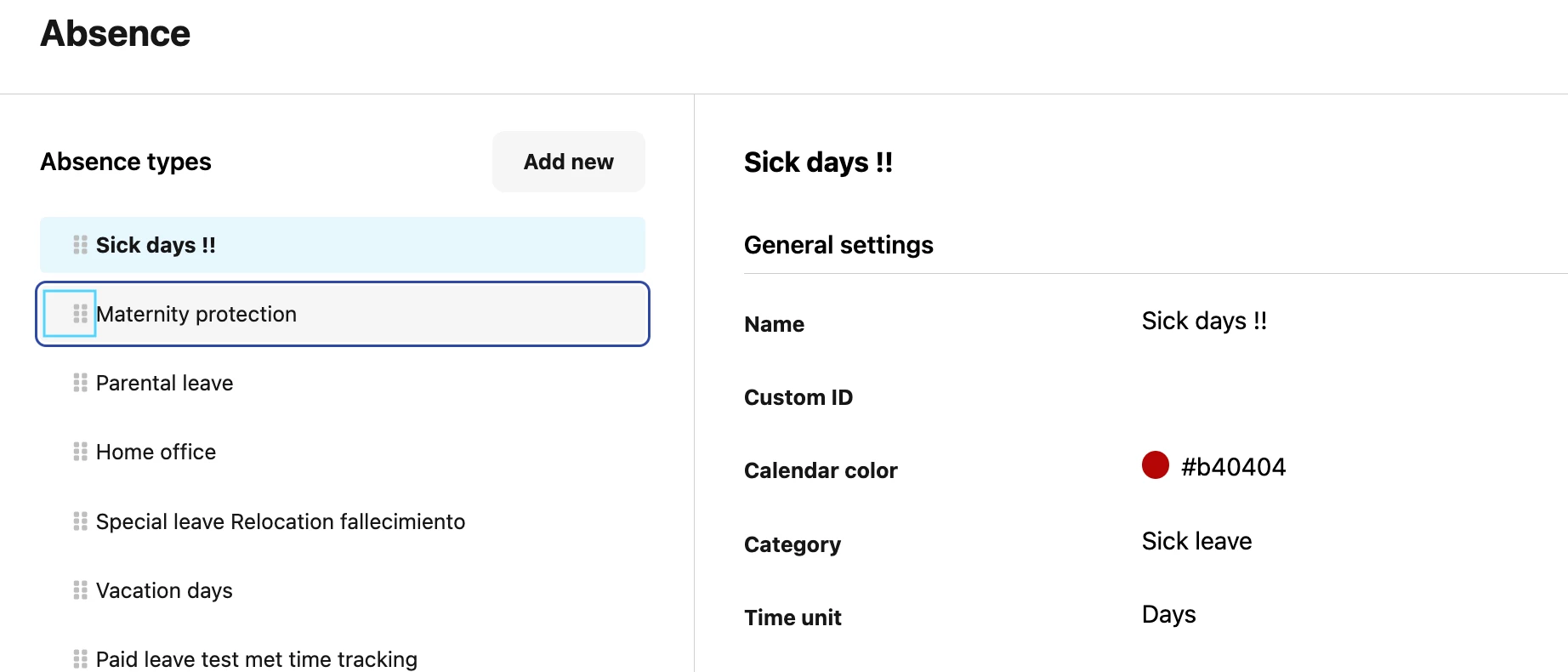
Answer to question 3: You can change the order by going to Settings > Absence > press on the 6 dots next to the Absence type and drag along to the desired order.
Dieses Thema wurde vor mehr als erstellt. Unser Produkt entwickelt sich schnell weiter — stelle gerne eine neue Frage, um die aktuellsten Infos zu bekommen.
Werde Teil der Personio Voyager Community!
Bitte benutze für die Registrierung die gleiche E-Mail-Adresse, die Du auch zum Login in Deinem Personio Account benutzt. Dies erleichtert es uns, Dir effektiv und effizient zu helfen, wenn wir z.B. etwas in Deinem Account überprüfen müssen. Bereits registriert? > Anmelden
Achtung: Dein öffentlicher Benutzername darf keine persönlichen Informationen wie E-Mail oder andere private Daten enthalten!
Herzlich willkommen in der Personio Voyager Community.
Die Service und Networking Community für alle Personio Kund*innen und HRler*innen. Solltest Du Dich noch nicht registriert haben, klicke bitte unten auf "Benutzerkonto erstellen". Benutzerkonto erstellen
Enter your E-mail address. We'll send you an e-mail with instructions to reset your password.