I'm currently working in a role that supports two separate entities within our company. I understand that it's possible to create separate career pages and use different email addresses for each entity. However, I am wondering about managing communication during the hiring process, especially when it comes to onboarding.
For example, if we hire a person for one of the entities, I want to ensure that all communications, such as onboarding emails, come from the email address dedicated to that specific entity. Is there a way to set this up in Personio so that communications are sent from the correct email address associated with each entity?
Any insights or advice on how to manage this would be greatly appreciated!
Thank you!
Beste Antwort von Steve_2
Hi @AnnaCzarnik,
You can use separate email addresses for communicating with candidates for each Legal entity in your Personio account. This ensures seamless communication from the respective Legal entity's recruiting email address for incoming and outgoing messages in the message tab of the candidate's profile.
To configure a recruiting email address for a Legal entity, follow these steps:
Navigate to Settings > Recruiting > General > Recruiting email settings and click on Edit.
Select Yes for the question Use custom email address?.
Choose the respective Legal entity you wish to edit and enter the required email address in Custom email address.
Note: You need to have set up a redirect of the Legal entity's custom email address to Personio's Company recruiting email address.
Click on Yes for the question Use for sending emails?
To ensure that your messaging to candidates is coming from the email address for the correct Legal entity, you must make sure that the Legal entity is selected in the job's details.
For further information, please see these Help Center articles:
You can use separate email addresses for communicating with candidates for each Legal entity in your Personio account. This ensures seamless communication from the respective Legal entity's recruiting email address for incoming and outgoing messages in the message tab of the candidate's profile.
To configure a recruiting email address for a Legal entity, follow these steps:
Navigate to Settings > Recruiting > General > Recruiting email settings and click on Edit.
Select Yes for the question Use custom email address?.
Choose the respective Legal entity you wish to edit and enter the required email address in Custom email address.
Note: You need to have set up a redirect of the Legal entity's custom email address to Personio's Company recruiting email address.
Click on Yes for the question Use for sending emails?
To ensure that your messaging to candidates is coming from the email address for the correct Legal entity, you must make sure that the Legal entity is selected in the job's details.
For further information, please see these Help Center articles:
Thank you so much for the detailed response! It’s very helpful, and I understand how the process works for the recruitment phase.
However, I’m facing a bit of a challenge when it comes to the onboarding (and offboarding) process. Specifically, when automating emails (e.g., welcome emails or tasks for the new hire), the sender seems to be selected from the list of employees within Personio, rather than an external email address.
Since I’m responsible for two entities, I’d like to know if it’s possible to have separate sender email addresses assigned during the onboarding process, based on the entity.
Is there a way to achieve this for automated communication during the onboarding process?
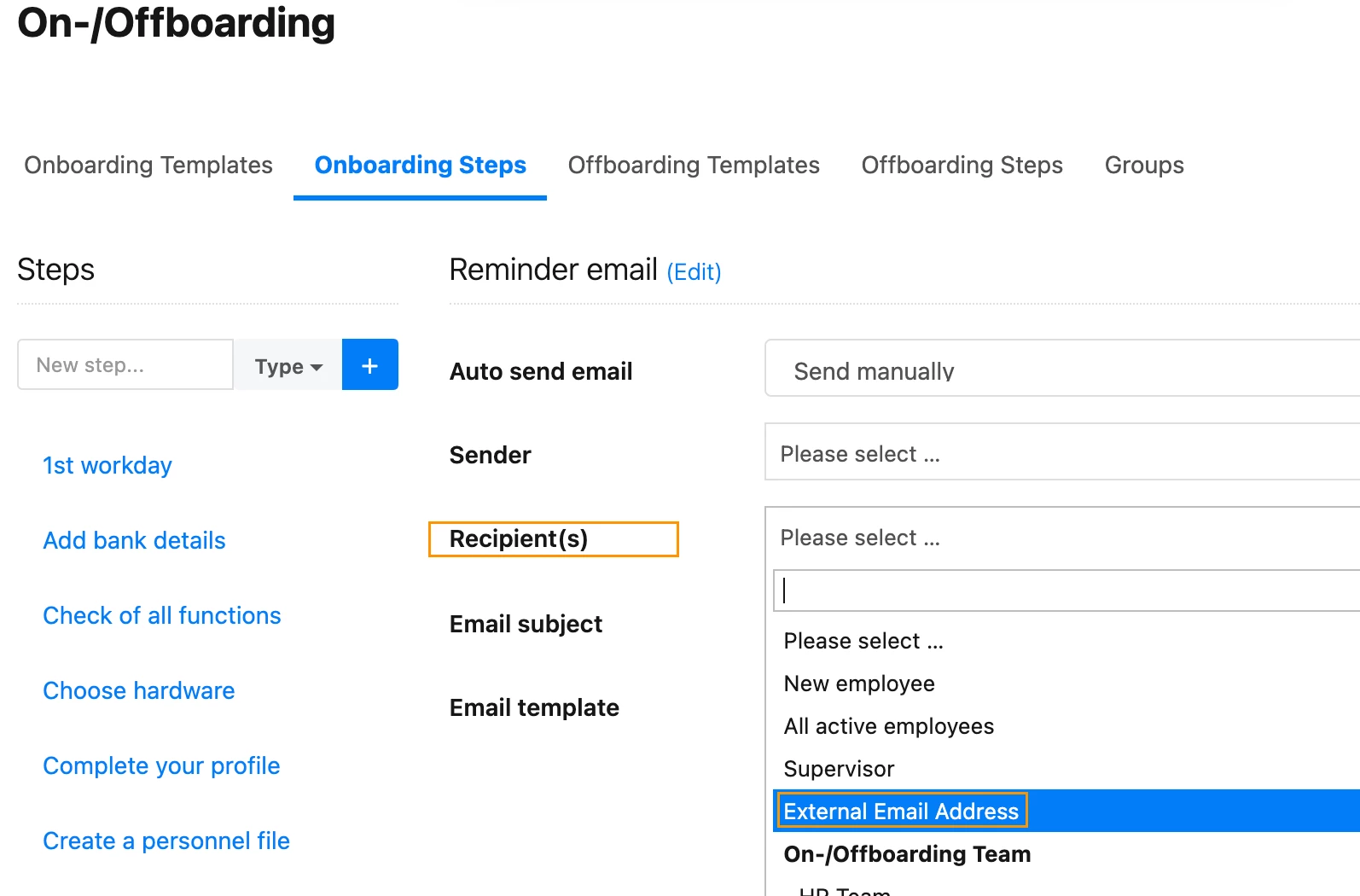
It is possible to select an external email address for the Recipient filed of an Onboarding step, however, it is not currently an option for the Sender field.
I would encourage you to send this as a suggestion through the new ‘Give feedback’ feature directly in your Personio account. Submissions will be forwarded directly to the relevant Product Teams. You can find more information in this community post.
If there is an update in this area, you will be informed through our Personio Product Updates or via an in-app notification.
Dieses Thema wurde vor mehr als erstellt. Unser Produkt entwickelt sich schnell weiter — stelle gerne eine neue Frage, um die aktuellsten Infos zu bekommen.
Werde Teil der Personio Voyager Community!
Bitte benutze für die Registrierung die gleiche E-Mail-Adresse, die Du auch zum Login in Deinem Personio Account benutzt. Dies erleichtert es uns, Dir effektiv und effizient zu helfen, wenn wir z.B. etwas in Deinem Account überprüfen müssen. Bereits registriert? > Anmelden
Achtung: Dein öffentlicher Benutzername darf keine persönlichen Informationen wie E-Mail oder andere private Daten enthalten!
Herzlich willkommen in der Personio Voyager Community.
Die Service und Networking Community für alle Personio Kund*innen und HRler*innen. Solltest Du Dich noch nicht registriert haben, klicke bitte unten auf "Benutzerkonto erstellen". Benutzerkonto erstellen
Enter your E-mail address. We'll send you an e-mail with instructions to reset your password.